
Publishing a new website page or blog post is only the first step toward getting organic traffic. For your content to appear in Google search results, Google must discover, crawl, and potentially index the page.
Understanding technical SEO best practices can help website owners identify crawling and indexing problems.
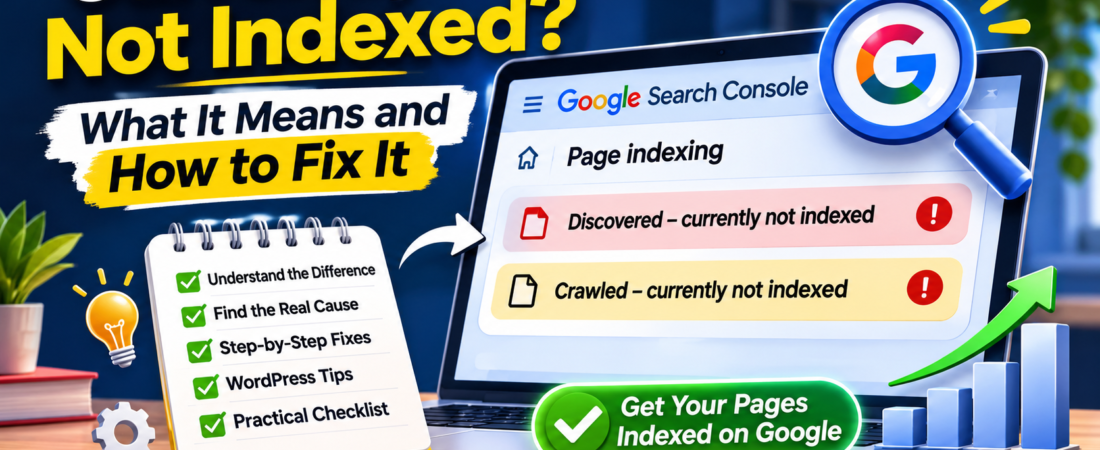
However, many website owners encounter two confusing statuses in Google Search Console:
- Discovered – currently not indexed
- Crawled – currently not indexed
Although these statuses sound similar, they describe different stages of Google’s indexing process. One indicates that Google knows about a URL but hasn’t crawled it yet. The other means Google has crawled the page but hasn’t included it in its search index.
Understanding this difference is essential because each situation requires a different SEO strategy.
In this guide, you’ll learn what these indexing statuses mean, why they happen, how to diagnose the underlying problems, and what practical steps you can take to improve your website’s indexing performance.
What Does Currently Not Indexed Mean?
The term “currently not indexed” appears in Google Search Console’s Page Indexing report.
It means Google has identified a URL but hasn’t included it in its search index at the time of reporting.
This doesn’t automatically mean your website has received a Google penalty or that something is technically broken.
Google evaluates several factors before deciding whether to crawl and index a page, including:
- Website structure and internal linking
- Content quality and originality
- Page accessibility
- Duplicate content
- Canonical tags
- Server performance
- Overall website quality
A page can remain outside Google’s index for different reasons. That’s why identifying its exact status should always be your first step.
Discovered vs. Crawled – Currently Not Indexed: What’s the Difference?
These two statuses represent different stages of Google’s crawling and indexing process.
1. Discovered – Currently Not Indexed
This status means Google knows that a URL exists but hasn’t crawled it yet.
Google may have discovered the URL through your XML sitemap, internal links, or external backlinks. However, it hasn’t fetched the page to evaluate its content.
In many situations, this happens because Google hasn’t prioritized crawling the URL.
Possible reasons include:
- Weak internal linking.
- Newly published pages.
- Large numbers of low-value URLs.
- Slow server responses.
- Inefficient website architecture.
- Technical crawling issues.
For example, imagine publishing a new blog post on your WordPress website. You submit its URL to Google Search Console, but the page remains in the discovered status.
If the article has no internal links and is included only in your sitemap, Google may take longer to crawl it.
What should you do?
Improve internal linking, check server performance, review your sitemap, and request indexing for important URLs after confirming they are accessible.
2. Crawled – Currently Not Indexed
This status means Google has already visited your page and fetched its content but hasn’t included it in the index.
Unlike the discovered status, the issue may involve the page’s content, duplication, technical configuration, or overall usefulness.
Common reasons include:
- Thin or low-value content.
- Duplicate or near-duplicate pages.
- Content that doesn’t satisfy search intent.
- Incorrect canonical tags.
- Soft 404 issues.
- Rendering problems.
- Pages that provide little additional information.
For example, suppose you publish five articles covering almost identical SEO topics. Each article uses slightly different wording but provides nearly the same information.
Google may decide that some pages don’t offer enough additional value to deserve separate indexing.
What should you do?
Evaluate the page’s quality, improve its usefulness, check canonical settings, investigate duplication, and strengthen its internal links.
Key Differences Between Both Indexing Statuses
| Factor | Discovered | Crawled |
|---|---|---|
| Google knows the URL | Yes | Yes |
| Google has fetched the page | No | Yes |
| Main concern | Crawling | Indexing decision |
| Common causes | Weak links, crawling delays | Thin or duplicate content |
| First action | Improve accessibility and internal links | Improve content and investigate technical issues |
Understanding this distinction prevents unnecessary SEO work. You shouldn’t rewrite a page simply because it hasn’t been crawled, and you shouldn’t repeatedly request indexing when Google has already evaluated a page without choosing to index it.
How to Check Your Indexing Status in Google Search Console
Before making changes to your website, confirm the actual status of the affected URL.
Follow these steps:
Step 1: Open Google Search Console
Visit Google Search Console and select the property associated with your website.
Step 2: Navigate to Page Indexing
Open the Page indexing report under the Indexing section.
Step 3: Review the Excluded Pages
Look for the following statuses:
- Discovered – currently not indexed
- Crawled – currently not indexed
Click the relevant status to see the affected URLs.
Step 4: Inspect the URL
Copy an affected URL and paste it into the URL Inspection tool at the top of Search Console.
Review the indexing information, including:
- Page availability.
- Last crawl date, if available.
- Crawl status.
- Indexing status.
- User-declared canonical.
- Google-selected canonical.
Step 5: Run a Live URL Test
Use Test Live URL to check whether Google can currently access the page.
Review the results for accessibility, indexing restrictions, and rendering problems.
Remember that a successful live test does not guarantee that Google will index the page.
Why Google Doesn’t Index Your Website Pages
Several technical and content-related problems can prevent pages from appearing in Google search results.
Understanding these issues helps you identify the correct solution instead of making unnecessary changes.
1. Thin or Low-Quality Content
One of the most common reasons pages remain unindexed is that they provide limited value to readers.
Examples include:
- Very short blog posts with little useful information.
- Product descriptions copied from manufacturers.
- Articles that repeat information available on many other websites.
- Pages created primarily to target specific keywords.
- Content containing unnecessary paragraphs without meaningful insights.
Google aims to provide helpful and relevant results.
If your page doesn’t provide useful information or offer something valuable compared with existing search results, it may not be selected for indexing.
How to fix it:
Improve your content by:
- Answering the main search query clearly.
- Adding relevant examples.
- Including practical explanations.
- Removing unnecessary paragraphs.
- Addressing related user questions.
- Providing original insights and useful information.
Focus on satisfying the reader rather than simply increasing article length.
2. Weak Internal Linking
Internal links connect different pages within your website.
They help search engines discover content and understand how your website is organized.
When a page has no internal links pointing to it, it may become an orphan page.
For example, imagine publishing a new article about technical SEO but never linking to it from your homepage, category pages, or related blog posts.
Google may discover the URL through your sitemap, but the lack of internal links provides fewer pathways to reach it.
How to fix it:
- Add links from relevant existing articles.
- Link to important pages from category pages.
- Include contextual links in your blog content.
- Use descriptive anchor text.
- Ensure important pages are accessible through your website navigation.
Avoid adding irrelevant links just to increase the number of internal links.
3. Duplicate Content
Duplicate content occurs when identical or substantially similar information appears across multiple URLs.
For example, an eCommerce website may generate several URLs displaying nearly identical product information.
Similarly, publishing multiple blog posts targeting the same topic can create unnecessary overlap.
Google may select one URL as the canonical version and exclude other similar pages.
How to fix it:
- Identify duplicate URLs.
- Consolidate overlapping articles when appropriate.
- Use canonical tags correctly.
- Redirect outdated or unnecessary URLs.
- Create genuinely distinct content for different search intents.
The objective is to make each important page serve a clear purpose.
4. Incorrect Canonical Tags
Canonical tags tell search engines which URL should be treated as the preferred version when similar or duplicate pages exist.
A canonical configuration pointing to the wrong URL can prevent your preferred page from being indexed.
For example:
Your intended article:
example.com/seo-guide/
Incorrect canonical URL:
example.com/old-seo-guide/
Google may interpret the old URL as the preferred version.
How to fix it:
Check the canonical tag in your page’s HTML or through an SEO plugin.
Make sure:
- The canonical URL is correct.
- It points to the intended preferred page.
- Redirects and canonical tags are consistent.
- Internal links point to the preferred URL.
Remember that Google treats canonical tags as signals rather than absolute commands.
5. Robots.txt Restrictions
Your robots.txt file provides instructions about which parts of your website crawlers can access.
If an important URL or directory is blocked, Google may not be able to crawl its content properly.
For example, an incorrect rule could prevent Googlebot from accessing your blog directory.
How to fix it:
Review your robots.txt file and check whether important pages or directories are unintentionally blocked.
Make sure your important content is accessible to Googlebot.
One important distinction: robots.txt controls crawling, whereas a noindex directive tells search engines not to index a page. These are different mechanisms.
6. Noindex Tags
A noindex directive instructs search engines not to include a page in their index.
Sometimes website owners accidentally enable this setting while creating or editing pages.
This is particularly common after website redesigns or migrations.
How to fix it:
Check the page’s HTML for a robots meta tag such as:
<meta name="robots" content="noindex">
Also review any X-Robots-Tag HTTP header.
If the page should appear in search results, remove the unintended noindex directive and allow Google to crawl the page again.
7. Poor Website Performance and Server Errors
Website performance can affect Google’s ability to crawl your pages efficiently.
If your server frequently returns errors or responds slowly, Google may reduce its crawling activity.
Possible problems include:
- Server errors.
- Frequent timeouts.
- Hosting limitations.
- Unstable website performance.
- Excessive redirect chains.
How to fix it:
- Monitor server response times.
- Fix 5xx server errors.
- Remove unnecessary redirects.
- Optimize images.
- Enable appropriate caching.
- Review your hosting resources.
A fast website doesn’t automatically guarantee indexing, but a reliable server helps Google access your content.
8. Crawl Budget Problems
Crawl budget refers to the number of URLs Google can and wants to crawl on a website over a particular period.
For most small and medium-sized websites, crawl budget isn’t usually a major concern.
However, larger websites with thousands or millions of URLs may experience crawling inefficiencies.
Examples include:
- Excessive filter combinations.
- Duplicate category pages.
- Unnecessary URL parameters.
- Low-value tag archives.
- Internal search result pages.
These URLs can make website architecture less efficient.
How to fix it:
- Remove unnecessary URL variations.
- Consolidate duplicate pages.
- Manage filter and parameter URLs.
- Prevent unnecessary crawling of low-value URL patterns where appropriate.
- Keep your XML sitemap focused on important canonical URLs.
Don’t spend time optimizing crawl budget on a small website unless you have evidence of a crawling problem.
How to Fix Discovered – Currently Not Indexed
If your URLs appear under Discovered – currently not indexed, focus first on helping Google access and prioritize your important pages.
Step 1: Request Indexing for Important Pages
Open Google Search Console and inspect the affected URL.
If the page is accessible and technically indexable, use Request Indexing.
This submits the URL for consideration but doesn’t guarantee crawling or indexing.
Avoid repeatedly submitting the same URL without making meaningful changes.
Step 2: Improve Internal Linking
Find relevant pages on your website that are already indexed.
Add natural links to the affected page from:
- Homepage.
- Relevant category pages.
- Related blog articles.
- Important service pages.
This creates additional discovery paths for Google.
Step 3: Check Your XML Sitemap
Your XML sitemap should include the important URLs you want search engines to discover.
Review it for:
- Redirected URLs.
- Noindex pages.
- Duplicate URLs.
- Broken pages.
- Unnecessary archive pages.
If you use Rank Math or Yoast SEO, review the sitemap settings and exclude content types that don’t need to appear in your sitemap.
Step 4: Check Server Health
Review your hosting dashboard for server errors and performance issues.
If your website regularly experiences timeouts or 5xx errors, investigate the hosting environment.
Step 5: Improve Website Structure
Make sure important pages are accessible through logical navigation and relevant internal links.
Avoid leaving important articles disconnected from the rest of your website.
How to Fix Crawled – Currently Not Indexed
When Google has already crawled a page but hasn’t indexed it, focus on improving the page’s value and checking for technical issues.
Step 1: Evaluate Content Quality
Read the article from a visitor’s perspective.
Ask yourself:
- Does it answer the main search query?
- Is the information useful and accurate?
- Does it provide original insights?
- Does it explain the topic clearly?
- Is it better than a generic summary?
- Does it satisfy the search intent?
If the page offers limited value, improve it substantially.
Step 2: Expand Important Information
Don’t add paragraphs just to increase word count.
Instead, improve the content by including:
- Relevant examples.
- Practical instructions.
- Supporting explanations.
- Useful comparisons.
- Updated information.
- Answers to related questions.
Every section should help the reader understand or solve the problem.
Step 3: Identify Content Overlap
Review other pages on your website covering the same subject.
If multiple articles target the same search intent, consider combining them into one comprehensive resource.
Preserve the strongest information, redirect outdated URLs where appropriate, and update internal links.
Step 4: Check Canonical Settings
Confirm that the affected page has the correct canonical URL.
If Google selects a different canonical URL, investigate whether the pages are duplicates or whether your canonical configuration is incorrect.
Step 5: Check Page Rendering
Some websites rely heavily on JavaScript to display their main content.
If Google cannot properly render the important content, it may struggle to understand the page.
Use URL Inspection to examine the rendered page and identify missing content or resource-loading problems.
Step 6: Request Indexing Again
After making meaningful improvements, inspect the URL and request indexing.
Then monitor the page through Google Search Console.
Common WordPress Indexing Problems
WordPress websites can experience indexing problems because of incorrect settings, SEO plugin configurations, and website architecture.
If you’re using WordPress, check the following settings.
1. Disable Discourage Search Engines
Navigate to:
WordPress Dashboard → Settings → Reading
Find the option:
“Discourage search engines from indexing this site.”
Make sure it is unchecked if your website is ready for search engine indexing.
This setting can cause major indexing problems when accidentally enabled.
2. Check Rank Math or Yoast SEO Settings
If you’re using Rank Math or Yoast SEO, review the indexing settings for:
- Posts.
- Pages.
- Categories.
- Tags.
- Author archives.
Make sure important content is set to index and unnecessary archive pages are configured appropriately.
3. Review Your XML Sitemap
Open your SEO plugin’s sitemap settings.
Confirm that your important posts and pages are included.
Your sitemap should contain canonical, indexable URLs rather than unnecessary or redirected pages.
4. Review Permalink Settings
Navigate to:
WordPress Dashboard → Settings → Permalinks
Check whether your URL structure is consistent.
If you’ve recently changed permalink settings, update internal links and redirect old URLs where necessary.
5. Check Security and Caching Plugins
Some security configurations can unintentionally restrict Googlebot access.
Review your firewall, caching, and security plugin settings if Google cannot access your important pages.
Common SEO Mistakes That Prevent Indexing
Even when website owners understand indexing, certain mistakes can make the problem worse.
Avoid these common practices:
1. Repeatedly requesting indexing
Submitting the same URL repeatedly doesn’t force Google to index it.
2. Publishing thin content
Creating large numbers of short, repetitive articles can reduce the overall usefulness of your website.
3. Ignoring internal linking
Important pages should not remain disconnected from your website structure.
4. Keeping staging settings enabled
A WordPress website can accidentally remain configured to discourage search engines after development.
5. Publishing duplicate articles
Multiple pages targeting almost identical search intent can create unnecessary content overlap.
6. Adding every URL to your sitemap
Your sitemap should focus on important canonical URLs that you want Google to discover.
7. Paying for guaranteed indexing
No legitimate service can guarantee that Google will include a particular URL in its index.
Practical Indexing Troubleshooting Checklist
Use this checklist whenever a page appears as currently not indexed in Google Search Console.
Technical SEO Checks
- Confirm the exact indexing status.
- Inspect the URL in Google Search Console.
- Run a live URL test.
- Confirm the page returns HTTP 200 when expected.
- Check robots.txt restrictions.
- Check for unintended noindex directives.
- Verify canonical tags.
- Review page rendering.
- Check server errors and redirects.
Content SEO Checks
- Make sure the content is original and useful.
- Confirm the page satisfies search intent.
- Remove unnecessary or repetitive paragraphs.
- Check for duplicate content.
- Review keyword cannibalization.
- Add relevant internal links.
- Update outdated information.
Final Steps
- Confirm the URL is included in the appropriate XML sitemap.
- Request indexing after fixing relevant issues.
- Monitor the URL through Search Console.
- Review the result again after allowing time for Google to process the changes.
Frequently Asked Questions
1. Why does Google Search Console show Currently Not Indexed?
Google Search Console displays this status when Google knows about a URL but hasn’t included it in its index. The reason may involve crawling delays, content quality, duplication, technical restrictions, or other indexing signals.
2. Is Discovered – currently not indexed a bad SEO sign?
Not necessarily. It means Google has discovered the URL but hasn’t crawled it yet. For a newly published page, this may simply reflect crawling prioritization. However, if important URLs remain in this status for an extended period, investigate internal linking, server performance, and website structure.
3. What is the difference between Discovered and Crawled?
Discovered means Google knows the URL exists but hasn’t fetched it. Crawled means Google has already visited the page but hasn’t selected it for indexing.
4. How do I get Google to index my pages faster?
Improve internal linking, maintain a clean sitemap, ensure pages are technically accessible, publish useful content, and request indexing for important URLs through Google Search Console.
There is no guaranteed method to force Google to index a page.
5. Does AI-generated content cause indexing problems?
AI-generated content isn’t automatically excluded from Google’s index.
The important consideration is whether the content is helpful, original, reliable, and created to serve users.
Generic, repetitive, or mass-produced content with little additional value may struggle to earn indexing and search visibility.
6. Should I delete pages that are not indexed?
No. First investigate why the pages aren’t indexed.
If a page contains useful information, improve it. If it duplicates another page, consider consolidation. If it has no value, removal may be appropriate.
If the URL has backlinks or organic traffic, consider a relevant redirect before removing it.
7. How long does Google take to index a page?
There is no fixed indexing timeframe.
Google may crawl and index some pages within days, while others may take weeks or longer. Some pages may never be indexed.
The timeline depends on crawling, technical accessibility, content quality, and Google’s indexing decisions.
8. Does requesting indexing guarantee that my page will appear on Google?
No. Request Indexing asks Google to consider the URL for crawling. It doesn’t guarantee that Google will crawl or index it.
9. Can internal linking help pages get indexed?
Yes. Internal links help Google discover pages and understand their relationship with other content on your website.
Linking to important pages from relevant, accessible pages can improve discoverability.
10. Can a page be crawled but not indexed because of a canonical issue?
Yes. If Google identifies another URL as the preferred canonical version, it may exclude the inspected URL from its index.
Review the user-declared and Google-selected canonical URLs in Search Console.
Conclusion
The Currently Not Indexed status in Google Search Console doesn’t always indicate a serious SEO problem. However, it shouldn’t be ignored when important website pages remain excluded from Google’s index.
The key is understanding the difference between Discovered – currently not indexed and Crawled – currently not indexed.
Discovered pages generally require attention to crawling, internal linking, website structure, and server accessibility. Crawled pages require a closer review of content quality, duplication, canonical configuration, and technical accessibility.
Instead of repeatedly requesting indexing, identify the underlying issue and apply the appropriate solution.
A well-structured website with useful content, strong internal linking, and correct technical SEO foundations gives Google better opportunities to discover, understand, and index its important pages.
Remember: successful indexing isn’t about submitting more URLs. It’s about creating pages that are accessible, useful, and worth including in Google’s search results.
Need help with your website’s indexing issues? Explore our SEO services to identify technical problems, improve website structure, and build a stronger foundation for organic search visibility.